Chair Seat Height
Adjust your chair so your feet rest flat on the floor or footrest, with your knees at approximately 90°. Your thighs should be parallel to the floor. This prevents leg circulation issues and supports your lower back.
Learn the core principles of ergonomic workspace arrangement from desk height to monitor positioning, with practical guidance for various equipment configurations.
Proper monitor placement reduces neck strain and supports sustained visual focus.
Position your monitor arm's length away — typically 20 to 26 inches from your eyes. The top of the screen should align with or slightly below your natural horizontal eye gaze when seated upright. This prevents downward neck flexion over extended periods.
Single Monitor: Center it directly in front, top at eye level. Use a monitor arm for adjustment flexibility.
Dual Monitor: Place primary monitor straight ahead. Position secondary at 30° angle or slightly lower to maintain natural head positioning.
Laptop Only: External keyboard and mouse are essential. Place laptop on a stand to achieve proper screen height, or use an external monitor.
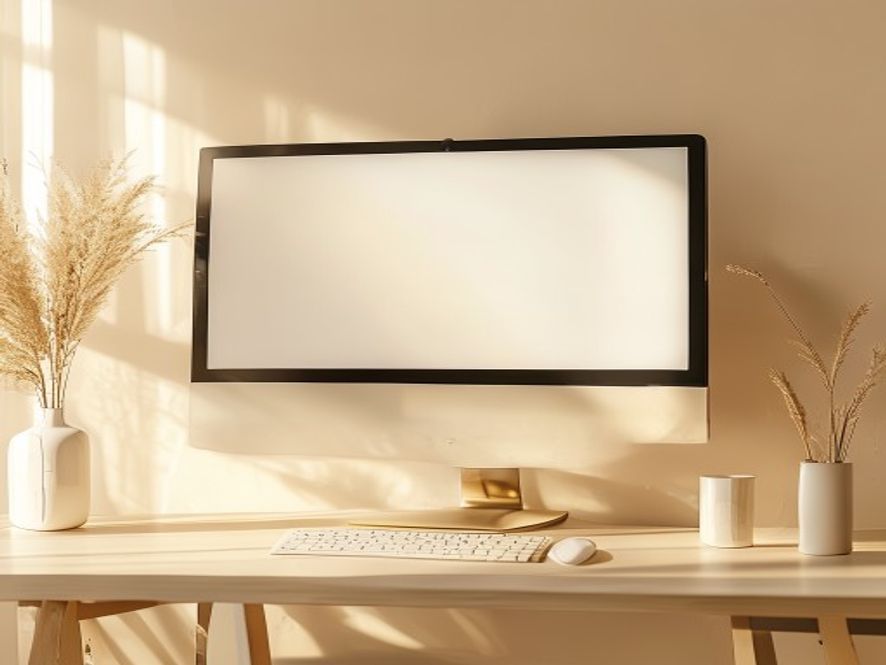
Correct chair and desk dimensions support neutral spine alignment throughout your workday.
Adjust your chair so your feet rest flat on the floor or footrest, with your knees at approximately 90°. Your thighs should be parallel to the floor. This prevents leg circulation issues and supports your lower back.
When sitting upright with arms at your sides, your elbows should form a 90° angle at your keyboard. This typically means desk height around 29–30 inches for average proportions, but individuals vary. Adjust your chair and desk to achieve this angle.
Keep your keyboard and mouse at the same height as your elbows. Your wrists should remain neutral (not bent up or down) while typing. Consider an ergonomic keyboard or wrist rest if your setup requires extended typing.
Your chair should support the natural curve of your lower spine. Most office chairs have lumbar adjustment. Position lumbar support to lightly contact your lower back without forcing a rigid posture.
Optional tools that may support your setup depending on your workspace and preferences.
| Equipment Type | Purpose | When to Consider | Notes |
|---|---|---|---|
| Monitor Arm | Adjustable monitor height and angle | Any setup where monitor positioning is challenging | Provides flexibility for multiple users or frequent adjustments |
| Ergonomic Keyboard | Wrist neutrality during typing | Extended typing, wrist discomfort with standard keyboard | Adjustment period needed; not required for all users |
| Ergonomic Mouse | Forearm and hand positioning | Frequent mouse use, preference for alternative grip | Vertical mice and trackballs are common options |
| Footrest | Leg and foot support if desk is too high | Users with shorter proportions or high desks | Helps maintain knee angle and circulation |
| Standing Desk | Sit-stand transition throughout day | Desire to vary posture and movement | Transition time needed; frequent position changes recommended |
| Document Holder | Reduce head rotation for reference materials | Frequent reference to physical documents or secondary displays | Position at similar height and distance as monitor |
Equipment is optional. Many workspace improvements come from positioning and habit adjustments using existing furniture. Prioritize positioning and movement integration before investing in equipment.
Use this checklist to assess your current workspace against ergonomic principles.
Adjust your workspace systematically for best results.
Photograph your workspace from the side. Identify any obvious positioning issues compared to the guidelines above. Note which elements you can adjust and which require new equipment.
Start with changes that require no equipment: chair height, monitor positioning using existing stands, keyboard/mouse repositioning. These often provide significant improvements.
Spend 1–2 weeks with your adjustments. Notice fatigue patterns, discomfort, or tension changes throughout the day. Small refinements often make a difference.
If positioning adjustments alone don't resolve discomfort, evaluate whether equipment like a monitor arm, ergonomic keyboard, or footrest would help. Test before purchasing when possible.
Even with perfect positioning, add regular posture breaks and micro-movements. Setup alone is insufficient; movement is equally important for long-term comfort.
Schedule a consultation to have your specific workspace reviewed with personalized recommendations.
Book Setup Consultation